How to Import from MetaTrader 5 (MT5)
SI
Written by SureInsight Team
Updated April 2026
How to Export Trade Data from MetaTrader 5
Open MetaTrader 5 Desktop Application
Launch the MetaTrader 5 (MT5) desktop app on your computer.
Open the History Tab in the Terminal Window
In the MetaTrader Terminal window, select the History tab.
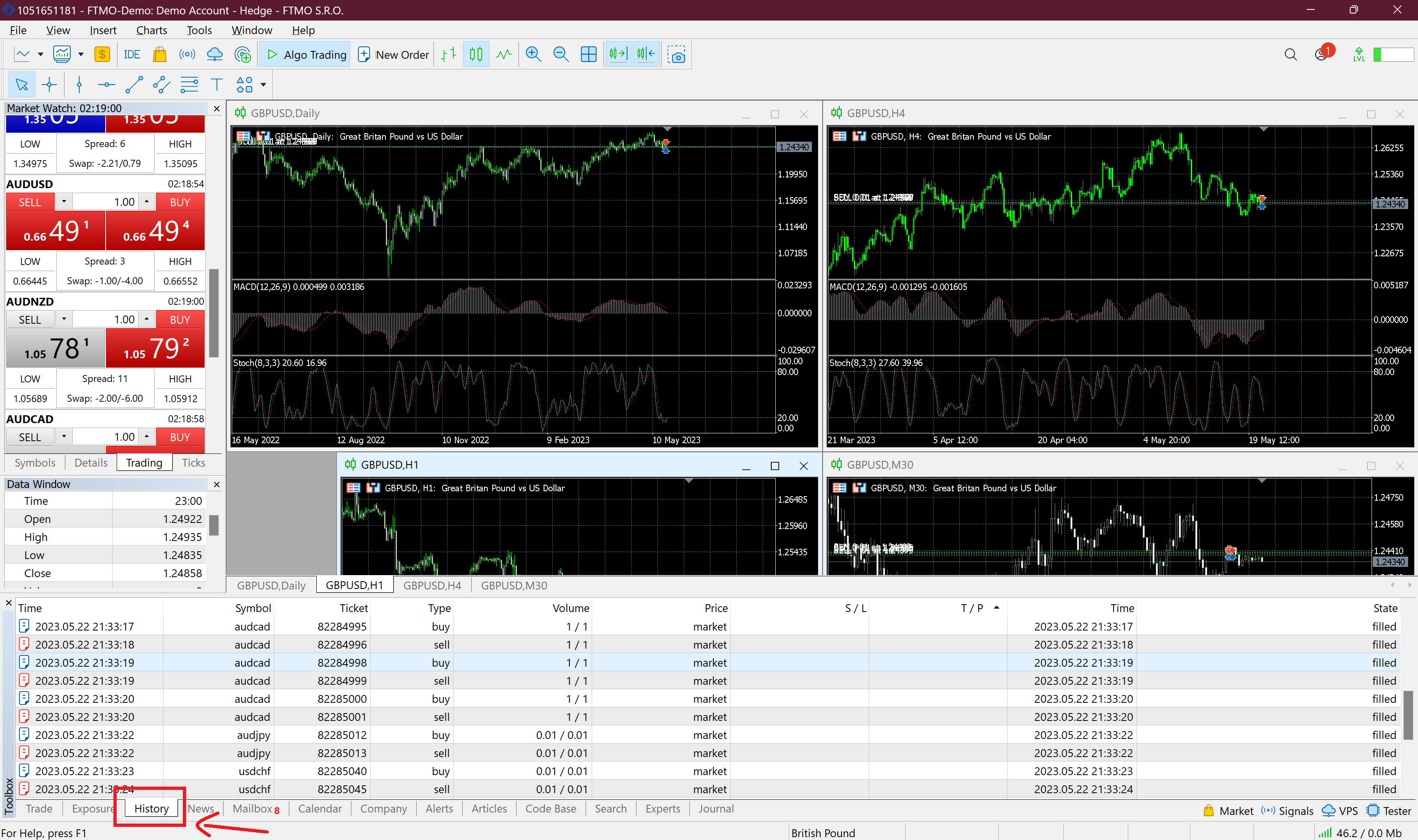
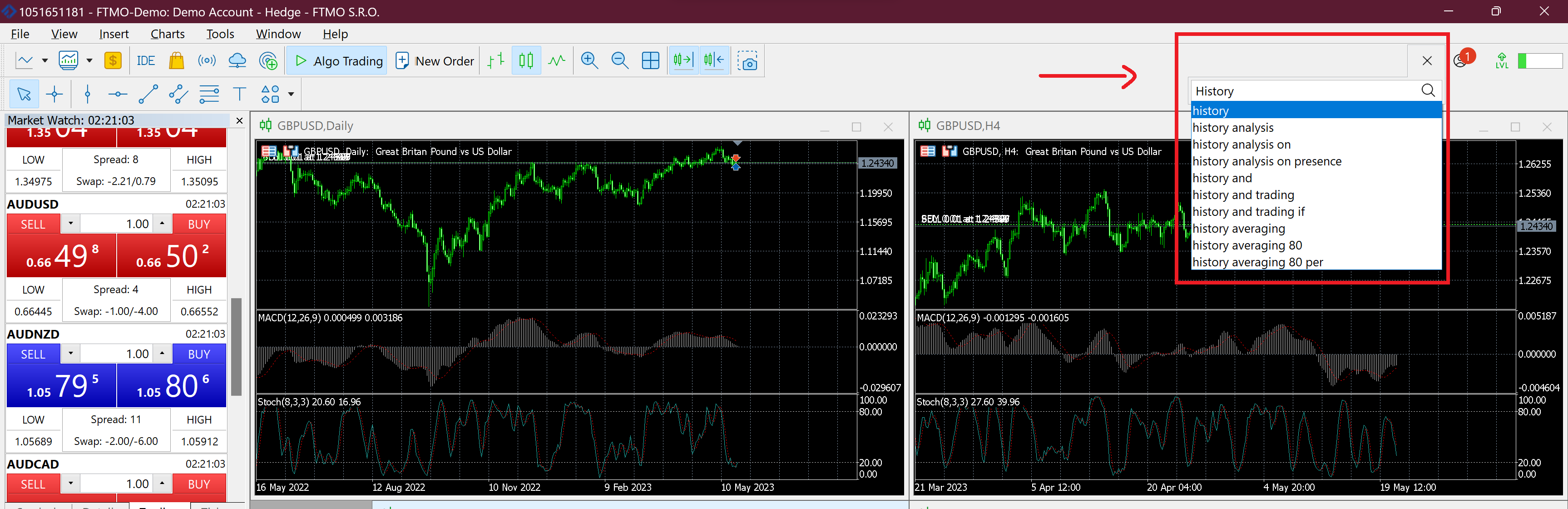
If you are having trouble locating the Terminal window, click on the search icon and type "History" to find and open it.
Select Orders and Time Period
Right-click in the History tab, select Orders, and then choose the time period you want to export.
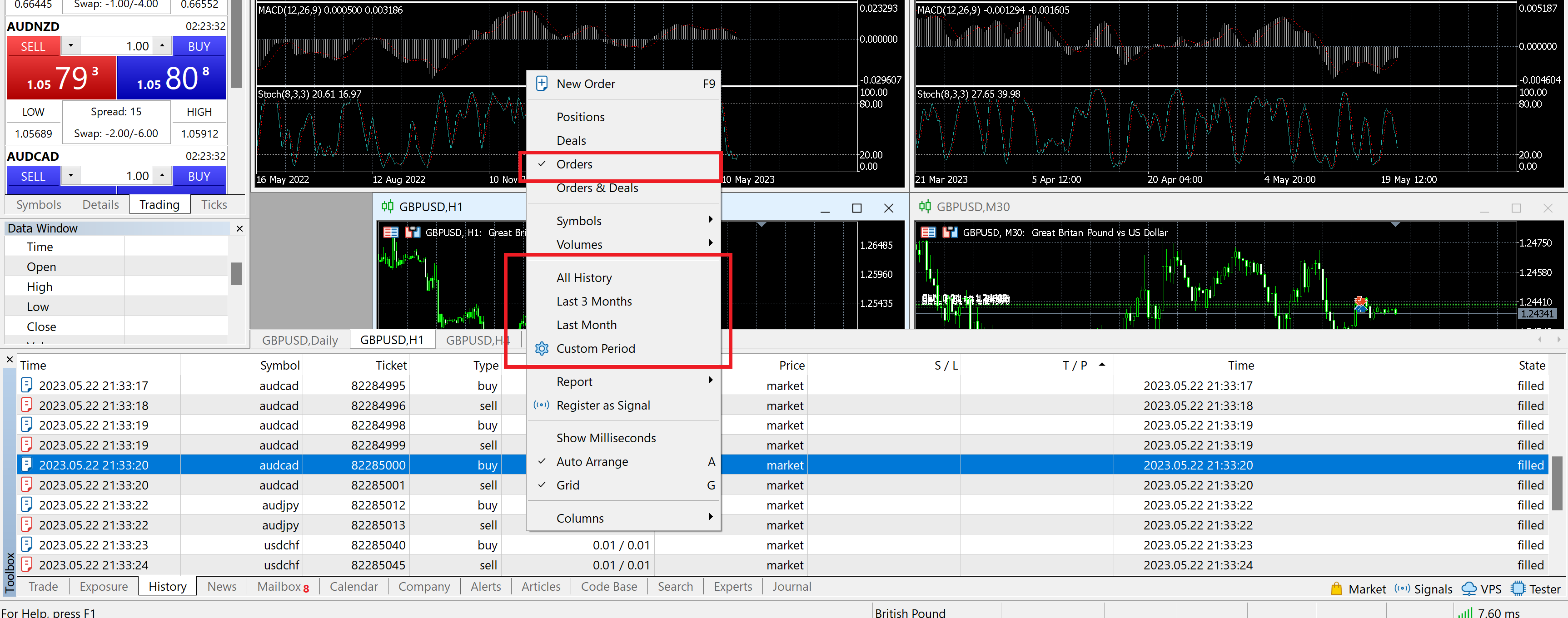
Options include "All History," "Last 3 Months," "Last Month," or a custom period of your choice.
Export as HTML Report
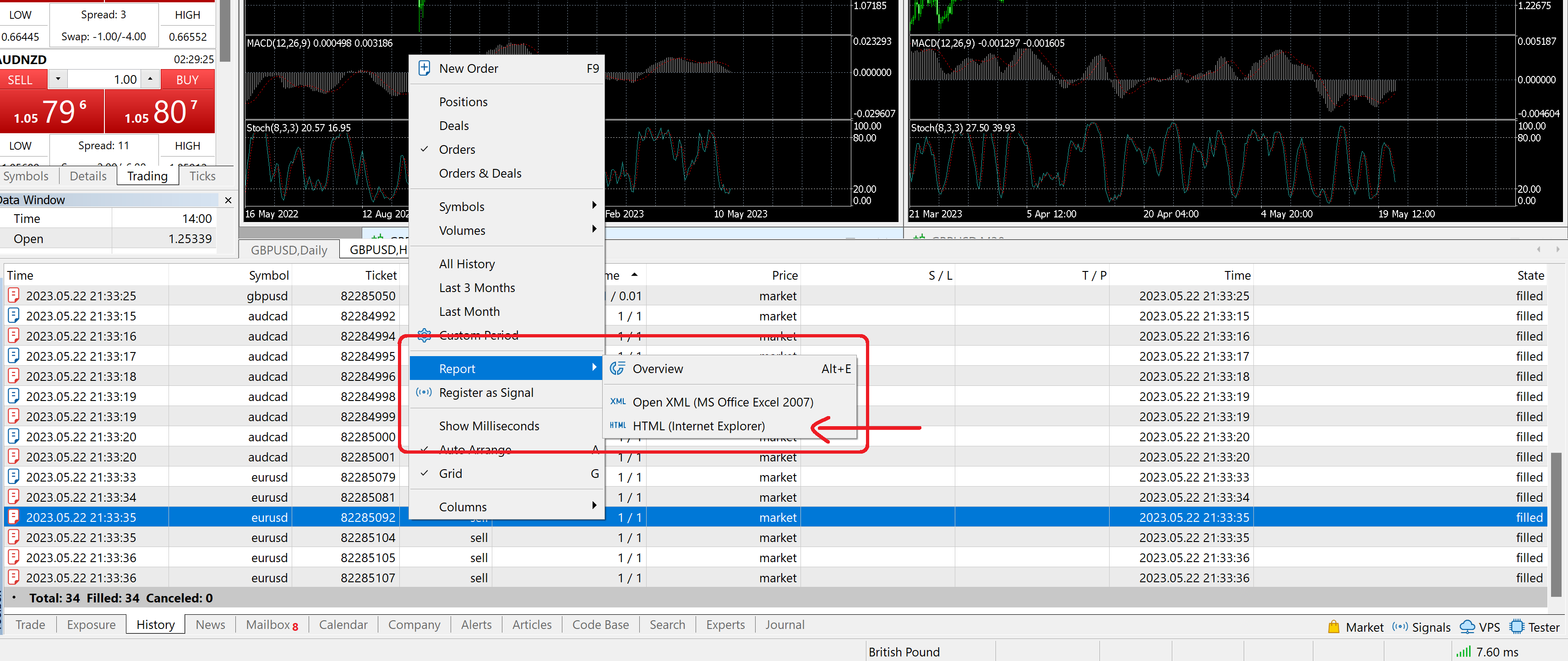
Right-click in the History tab, select Report, and then choose HTML. Save the report as an HTML file to your desktop.
Step 2: Upload to SureInsight
- Go to Add Trade → File Upload
- Select your account
- Drag and drop or click to upload your HTML file
- Review the preview and click Import
✓ What gets imported: Trade history, balance transactions, account currency, and starting balance
Did this answer your question?