How Auto-Sync Works
SI
Written by SureInsight Team
Updated April 2026
Importing Trades via Broker Sync
Getting your broker account synced with SureInsight is straightforward. Follow these steps:
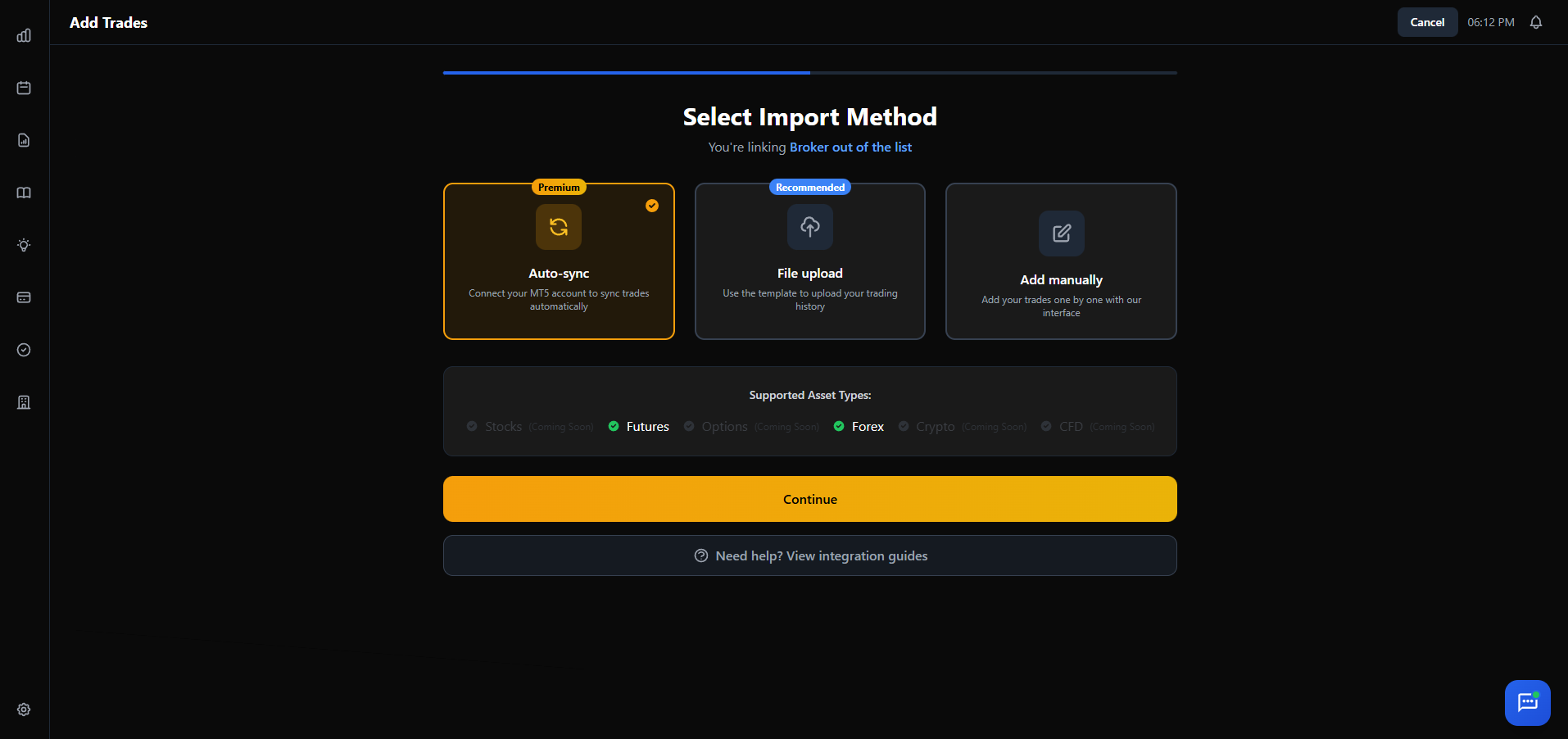
Visit the Broker Sync Page
Go to Add Trade → Broker Sync, or click "Add Trade" in the sidebar and select "Broker Sync."
Select Your Broker and Input Details
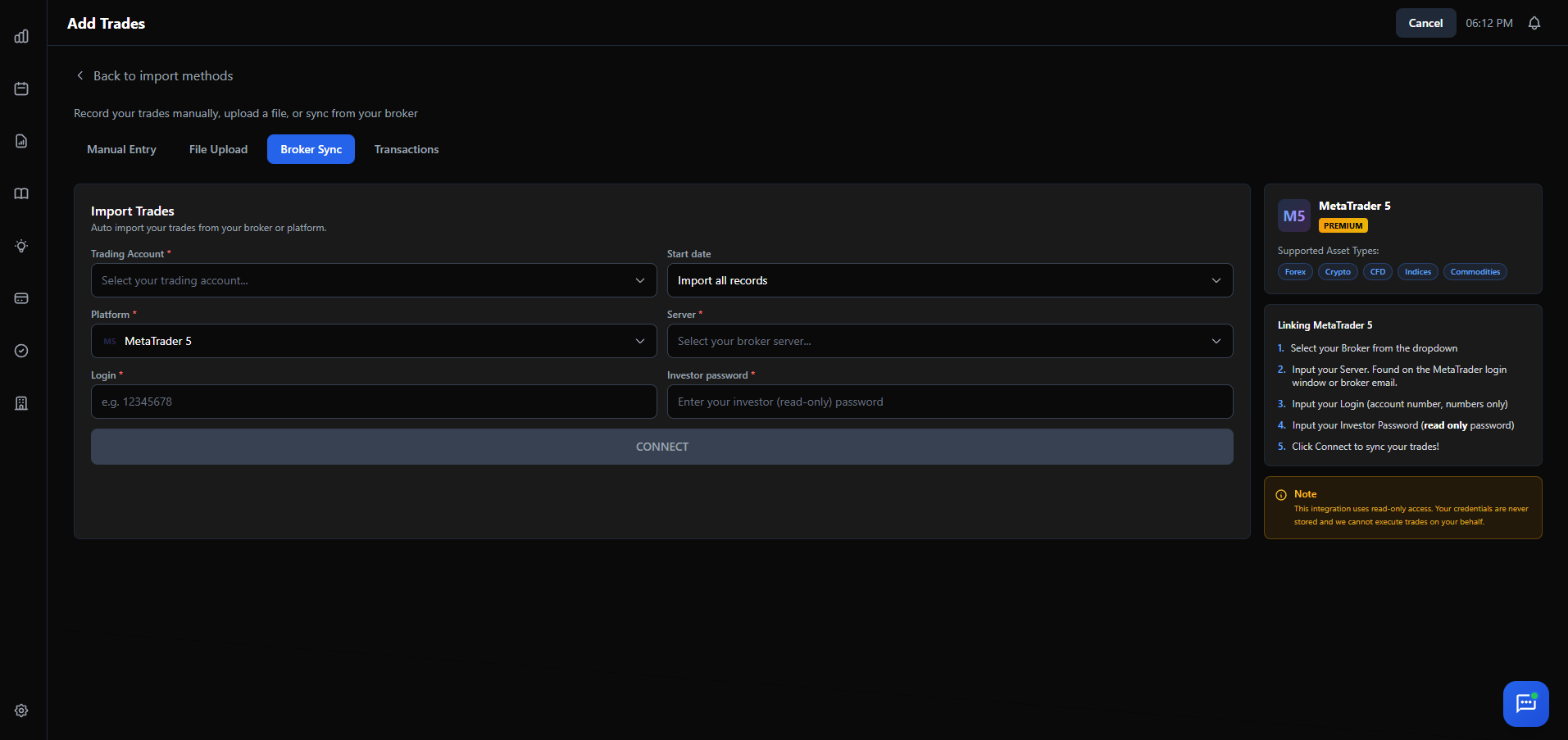
Click Add New Broker. Choose MetaTrader 5, cTrader, or Tradovate. Enter your credentials:
- Select your broker/company name
- Enter the server name
- Input your login (account number)
- Input your investor password (read-only)
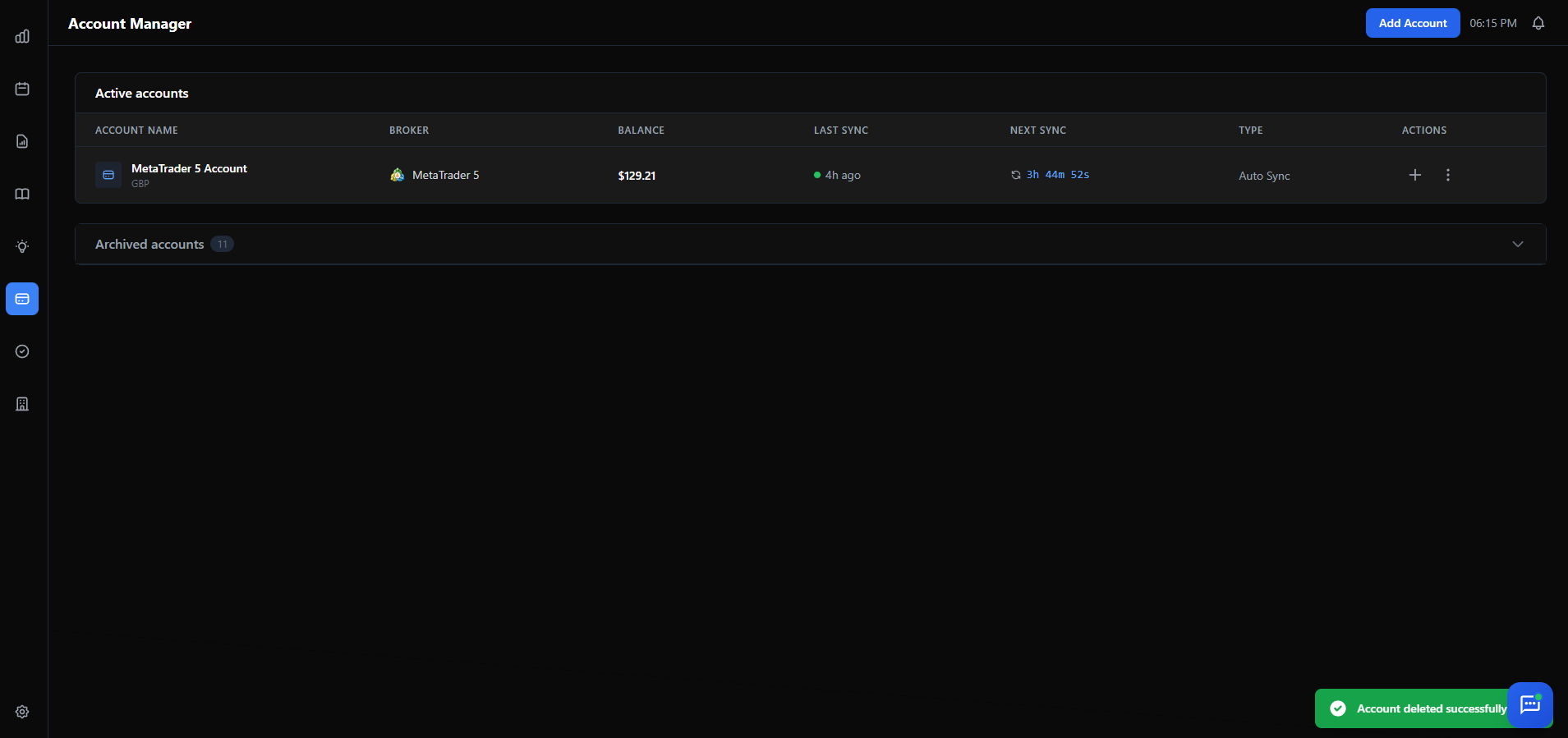
Track Sync Status
SureInsight will begin syncing. Monitor progress on the broker sync page.
Important Notes
- Investor Password: Found in MetaTrader's "Mailbox" tab or emails from your broker.
- Troubleshooting: Try both regular and investor passwords. Use a different browser if issues persist.
Security: SureInsight only uses read-only access. We cannot execute trades or withdraw funds.
Did this answer your question?